
Devlog
GPT Image 2.6 SVG Generation: How Good Is It?
The frog was smaller than its thumbnail. The lion showed why file size is only half the story.
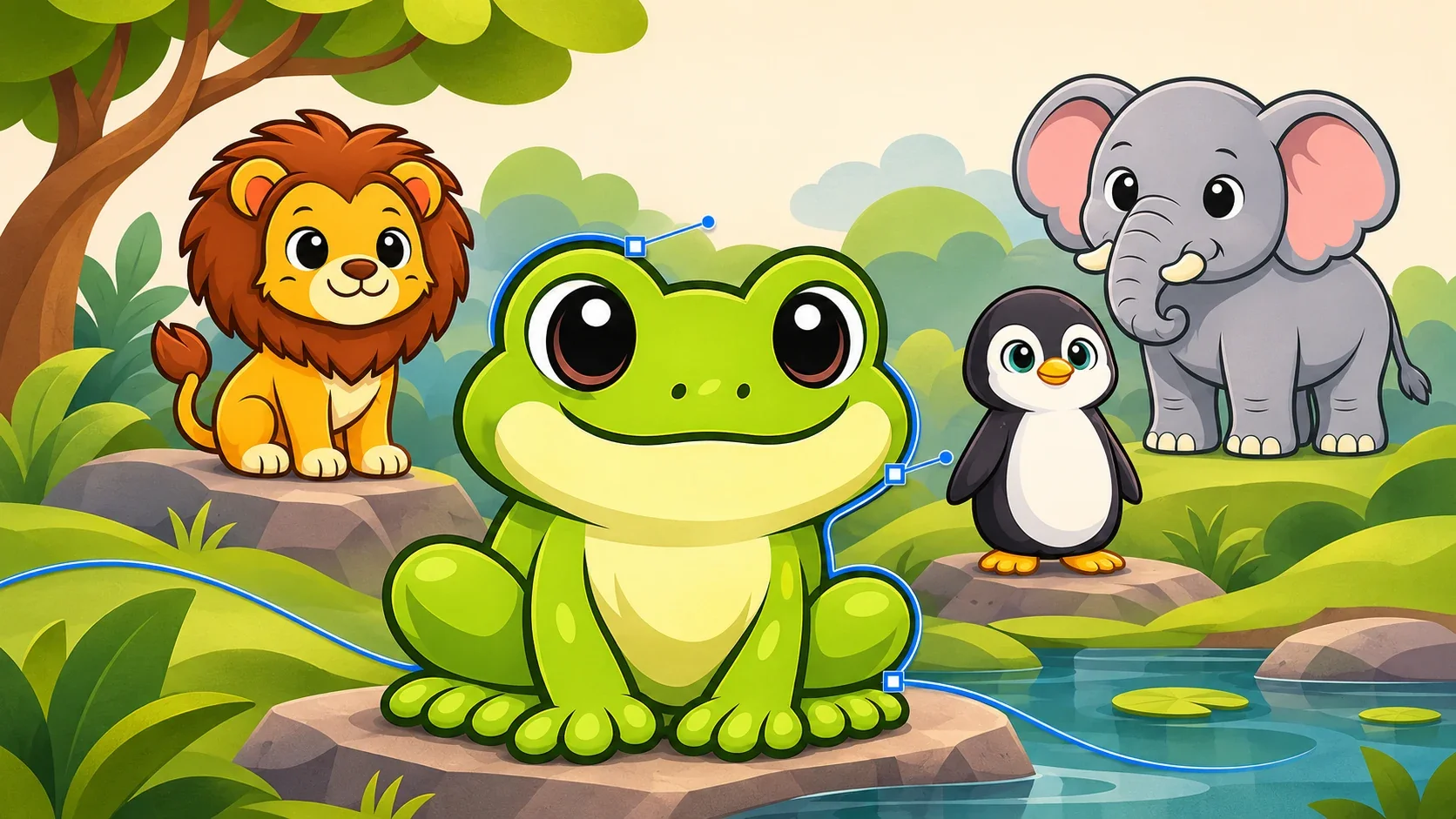
The frog came back as an 11 KB SVG, smaller than its tiny in-game thumbnail. The bright green skin, big eyes and clean black outlines made it easy to like. Beside the original, though, the changes were obvious: a wider smile, taller eyes and feet in different places.
When OpenAI released Sunburst and Flare on November 4, 2026, I tried the new SVG output on four animals from Animal Explorer, my animal-learning game project. I wanted smaller files and artwork that could scale from a phone’s animal picker to a large TV screen.
The frog made a promising first impression. The lion showed how a compact, technically valid SVG could still be a bad drawing. These comparisons explain what to look for, with file sizes and an API example for trying it yourself.
See the animals · Compare file sizes · Try the API example
Start with the frog
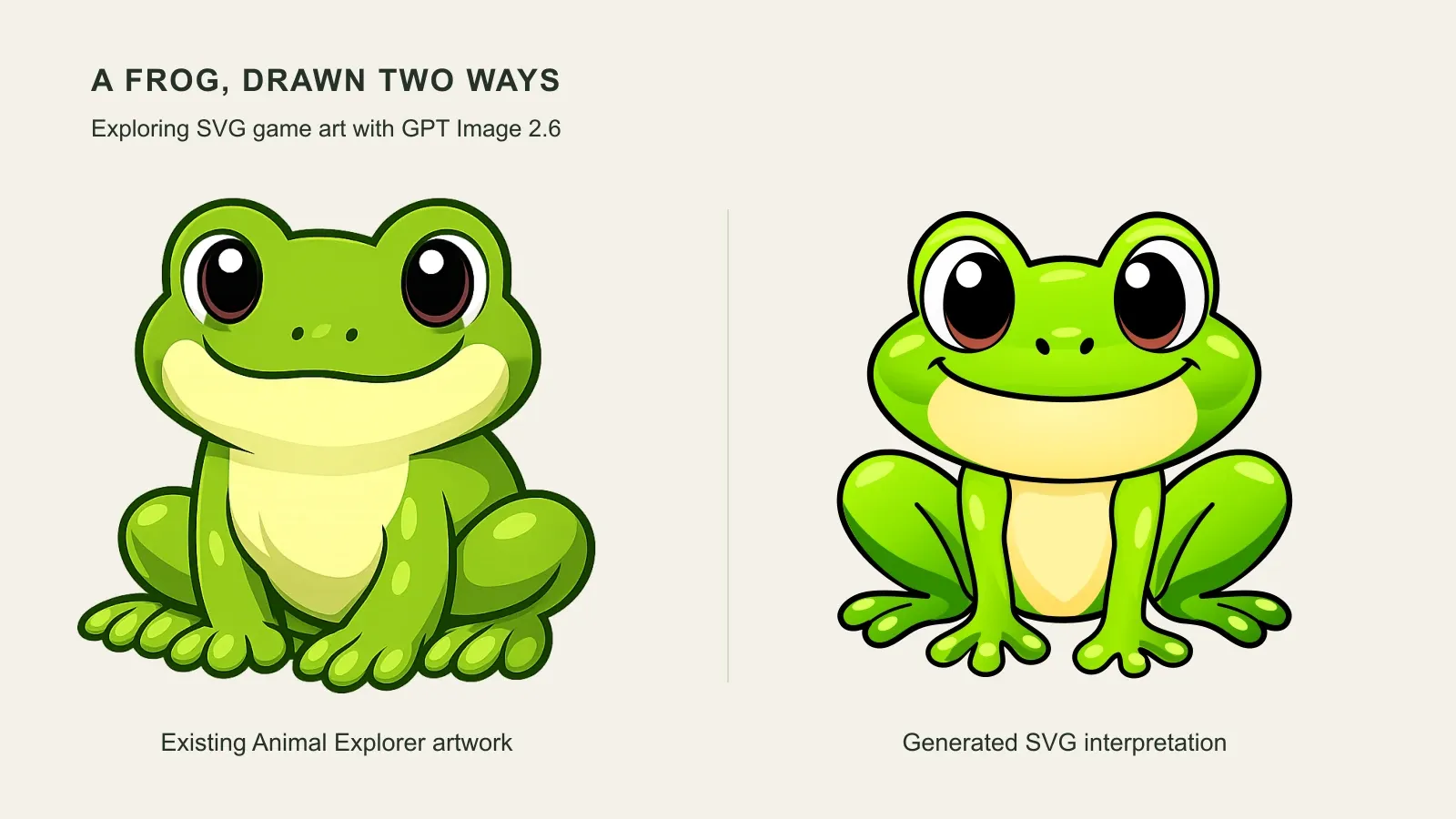
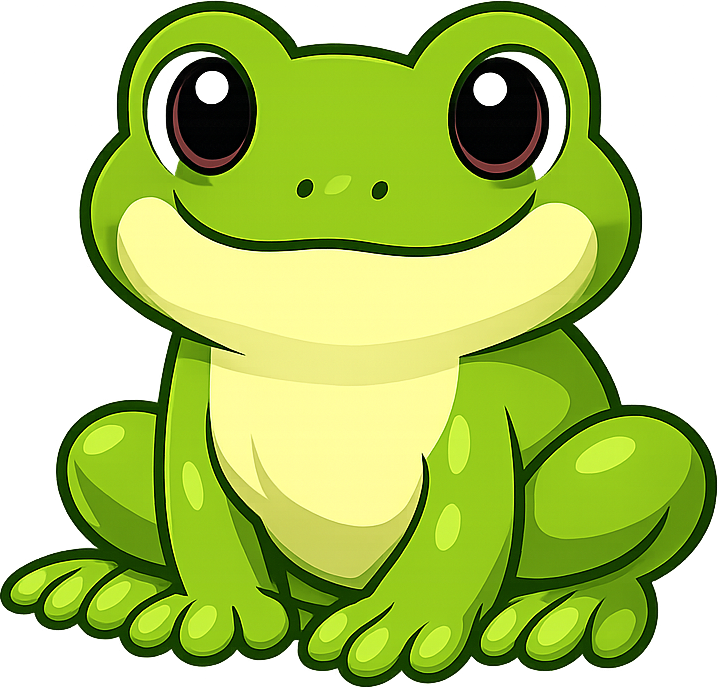
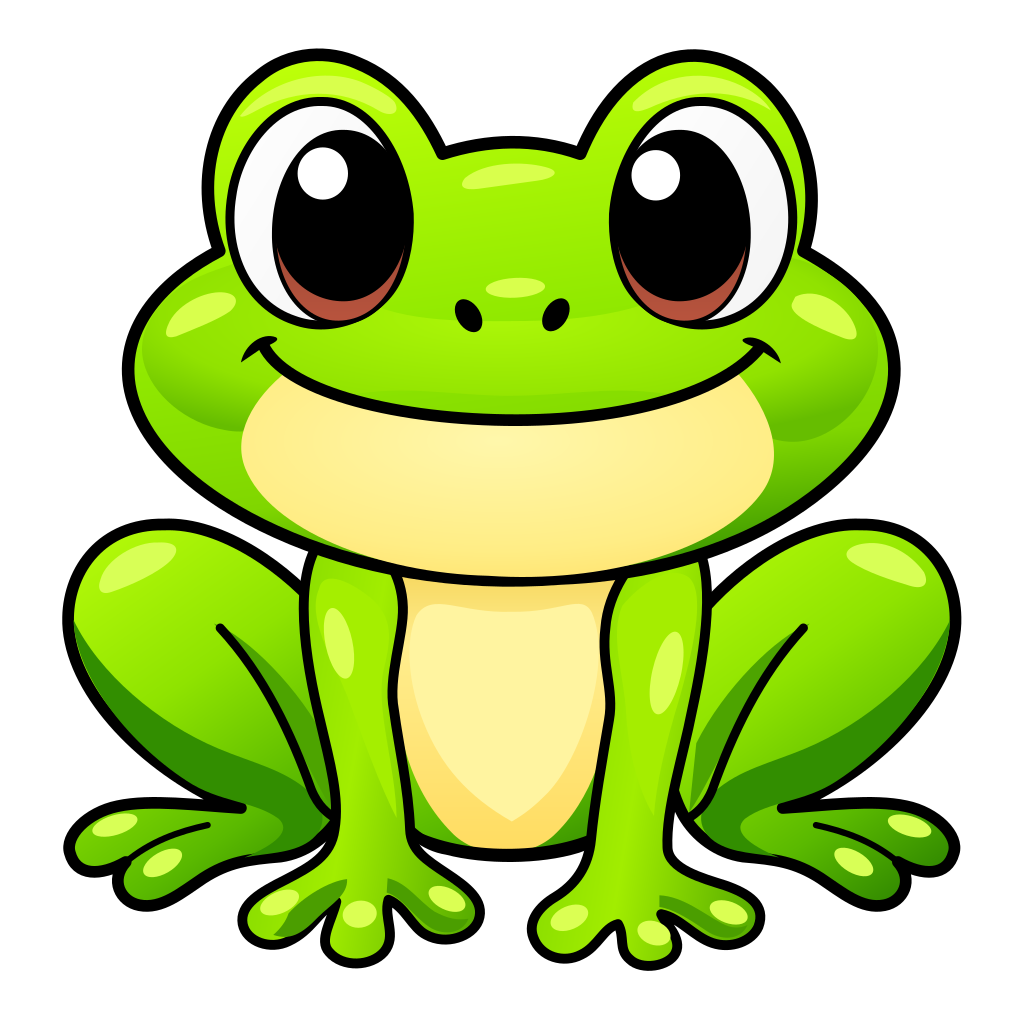
The first frog kept the lime-green body, pale throat and friendly expression. Its face and feet remained readable in a small preview. Open the SVG and zoom in: the outlines stay crisp because they are vector shapes.
This 11,068-byte version came from a detailed written description, without the source image attached. It is a new drawing of the frog, with its own expression and pose.
A reference still leaves room for a redraw
Next, I supplied the original PNG as image context in the Responses API and tried both Sunburst and Flare. Each pair used the same written prompt. For the second pair, I asked for flat cel-shading instead of gradients.
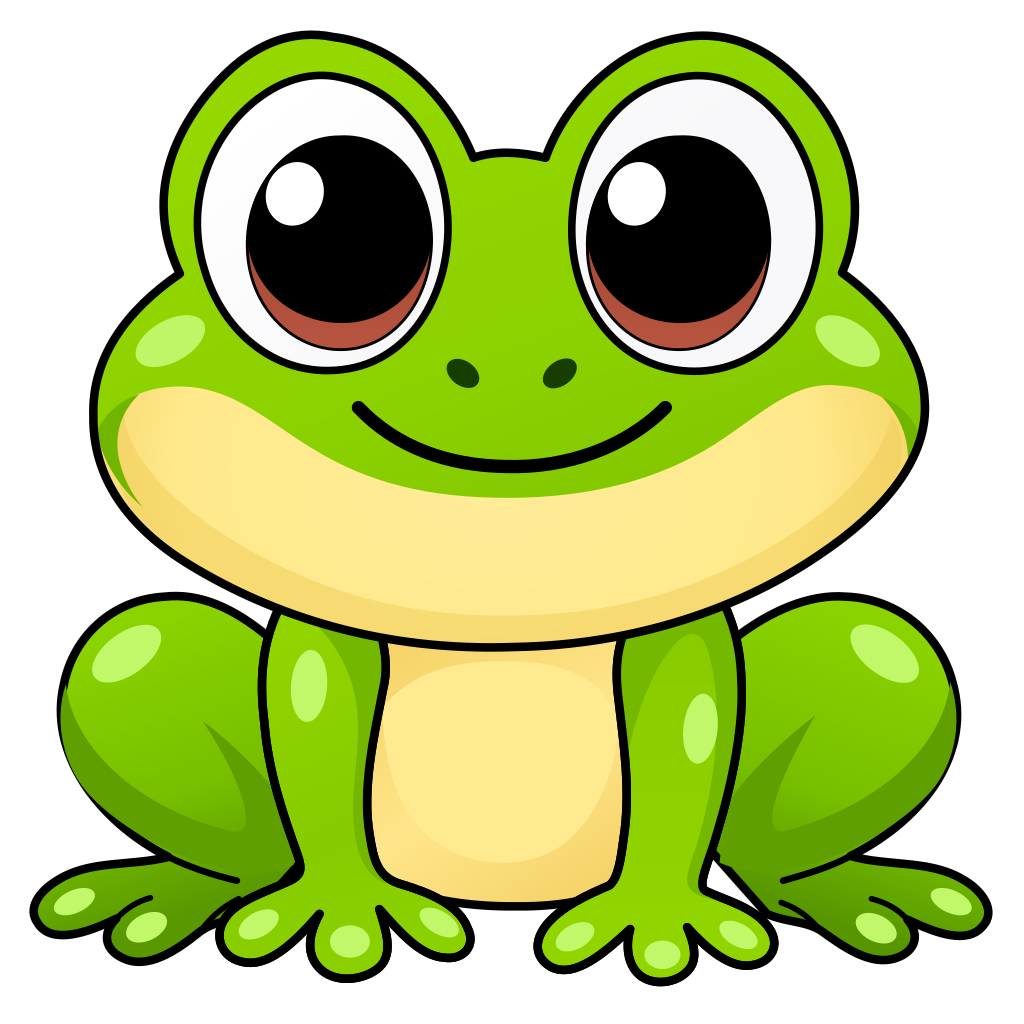
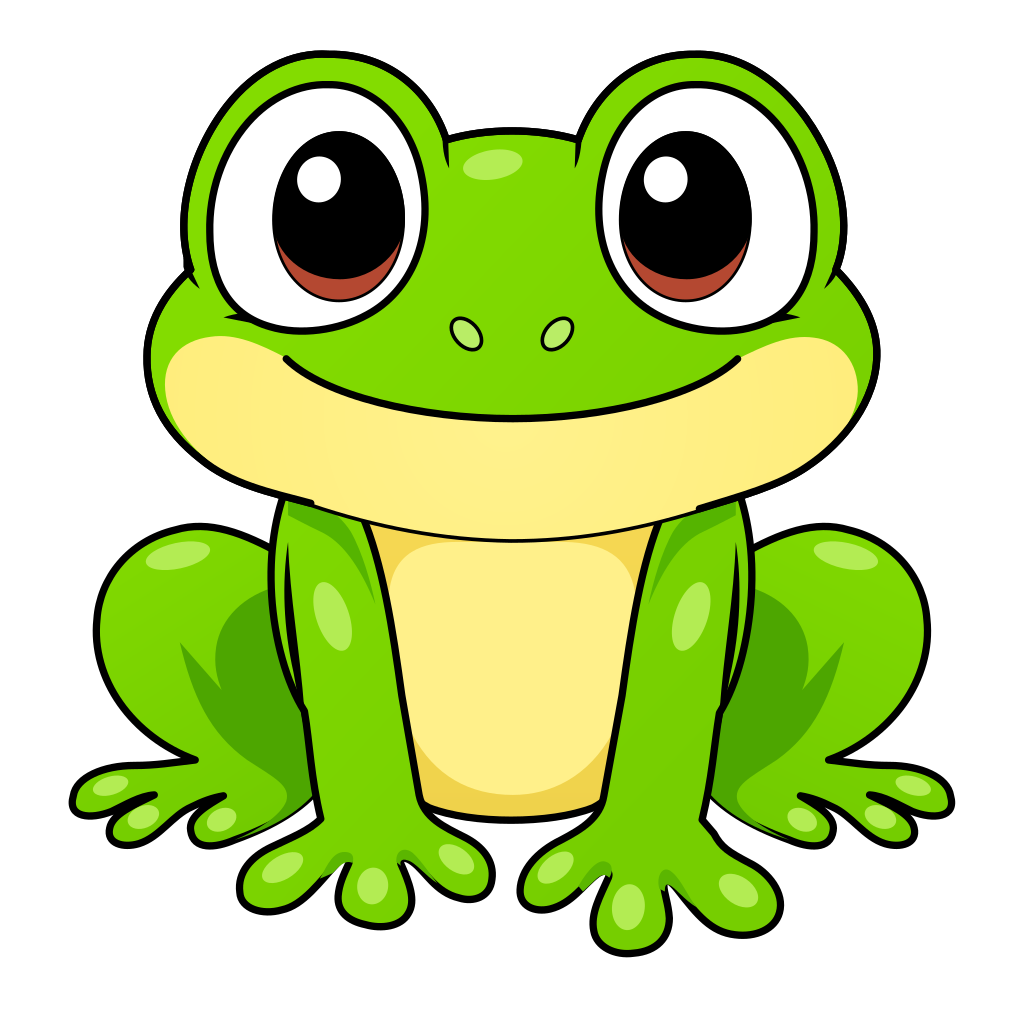
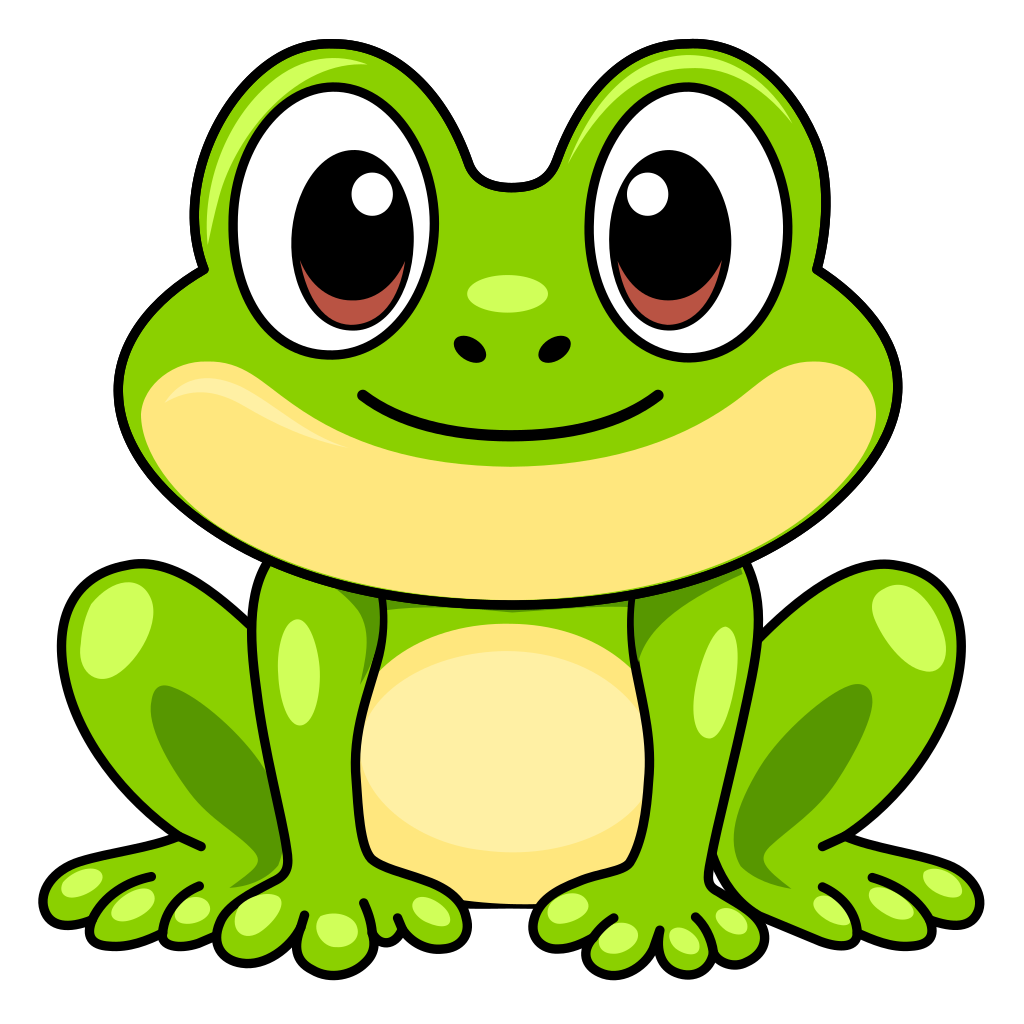
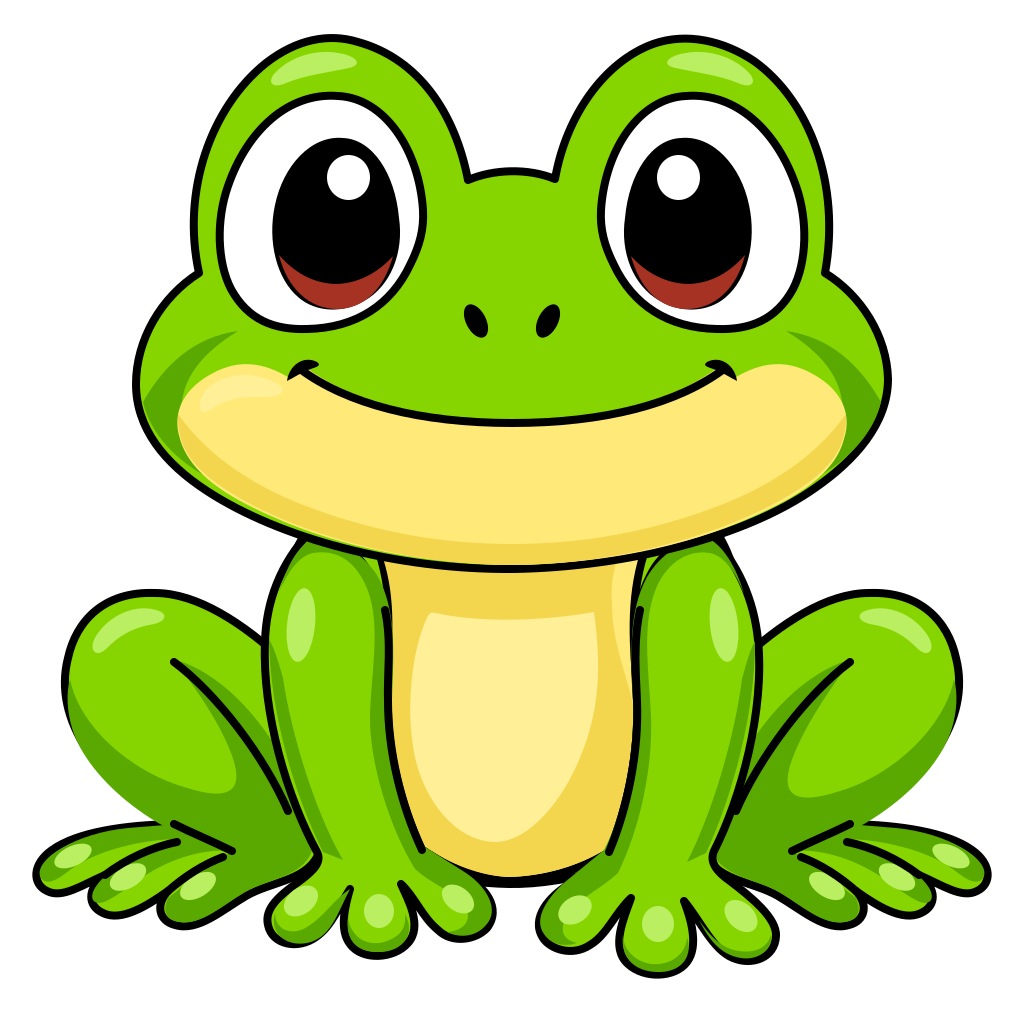
All four have connected limbs and clear black contours. Flare keeps the smile close to the pale muzzle, while Sunburst draws a separate grin above it. None preserves the exact pose. The earlier text-only frog also used a different prompt, so this does not isolate the benefit of adding a reference.
Flat shading brought a useful surprise. Both flat versions have zero gradients, but only one got smaller: Sunburst went from 11,816 to 8,323 bytes, while Flare went from 11,015 to 11,170. The shapes needed for flat shading take space too. Choose it for the look you want, then measure the result.
How small are the files?
A collection of large animal images adds up. The useful comparison is with Animal Explorer’s existing WebP assets, including picker thumbnails, rather than the larger source PNGs.
| Animal | Full WebP | Picker WebP | New SVG |
|---|---|---|---|
| Frog | 414,862 | 51,416 | 11,068 |
| Lion, later Flare | 482,880 | 42,370 | 16,037 |
| Penguin, text prompt | 399,656 | 28,758 | 7,933 |
| Elephant, flat revision | 561,966 | 45,018 | 8,939 |
All four selected SVGs are smaller than their picker thumbnails. The frog is about 78% smaller than its 226 × 216 thumbnail, while its vector edges can stay sharp at larger sizes.
These are different drawings, so the table is not a like-for-like compression test. The numbers measure files on disk. App-download savings, memory use and rendering speed still need testing in a build of the game.
The lion: more detail did not fix the drawing
An early, simplified lion lost much of the original’s charm. Asking for layered fur and shading produced this more elaborate, 18,545-byte version:
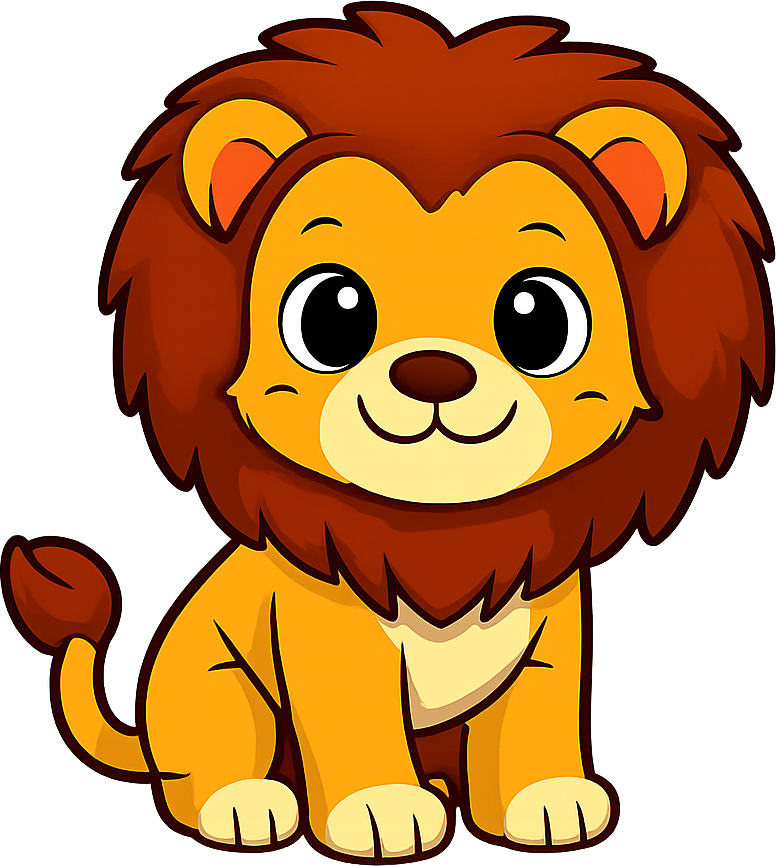
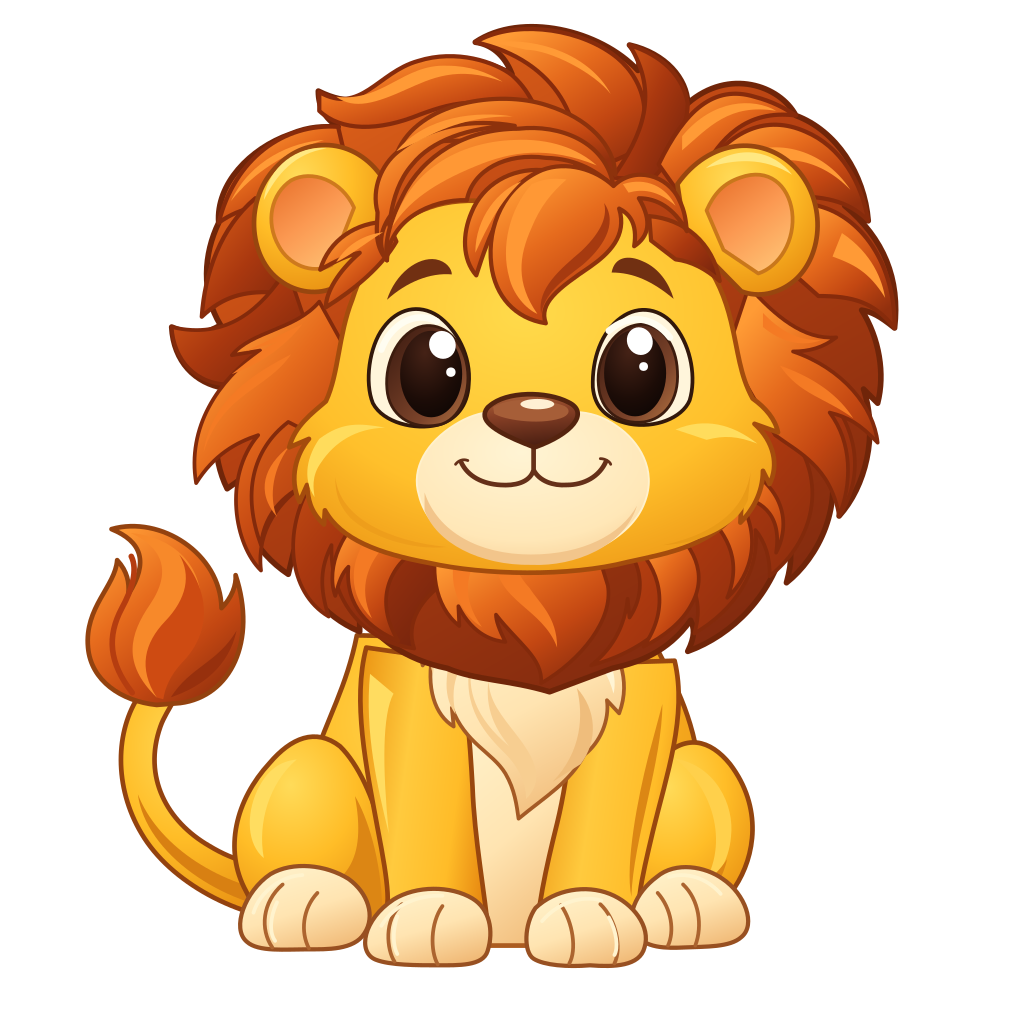
The mane sweeps in a different direction, the outlines turn brown, and the front legs look disconnected. Extra detail drew attention away from the compact face and rounded mane that made the original appealing.
A later Flare result, with the original PNG supplied as context, was more convincing. Its paws and tail read as attached, and its face feels closer to the source. The mane, rear haunch and paw placement still change.
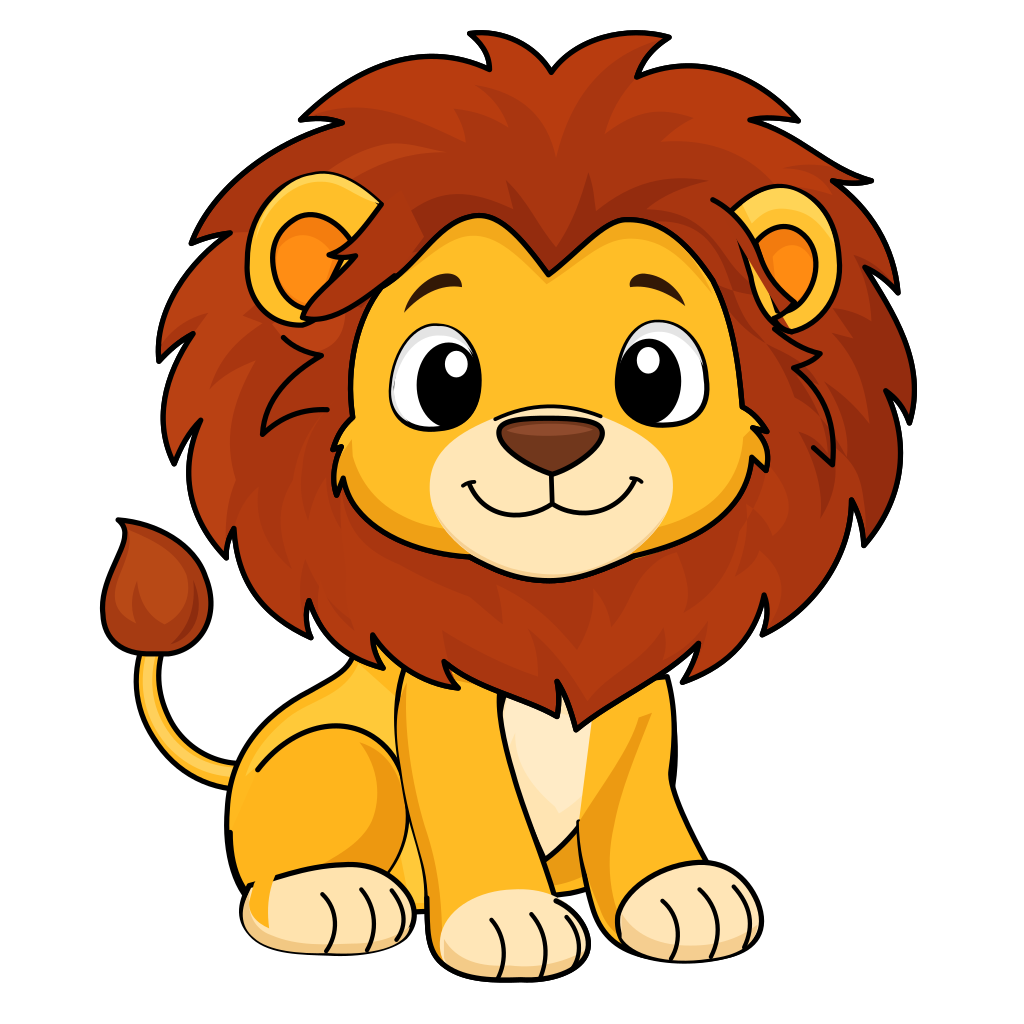
That version is 16,037 bytes, smaller than the earlier, less convincing lion. In this case, the better drawing was also the lighter file.
Look closely at the hairline
The Sunburst lions below used the same source PNG and written prompt. Both used high image quality; I changed the complexity setting, which controls how much planning the model does, from low to high.
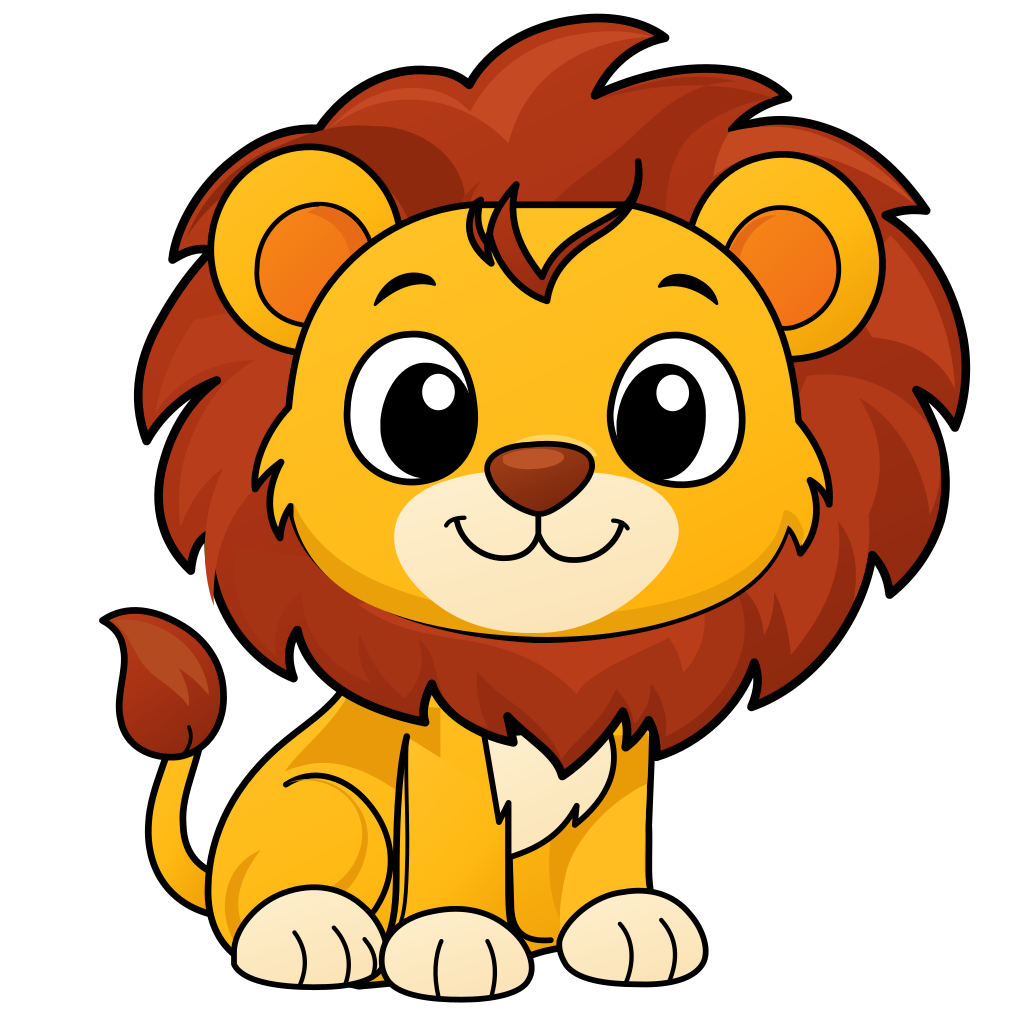
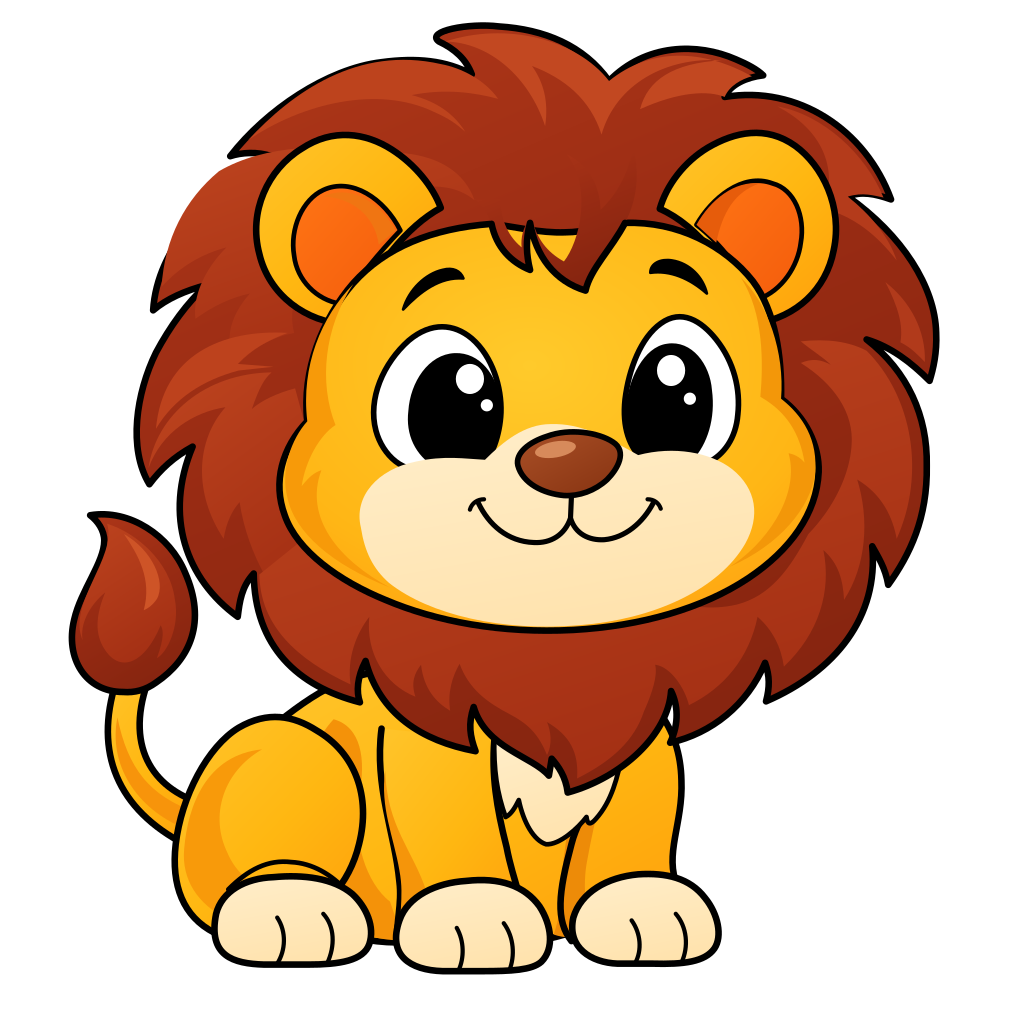
Changing complexity left the path count at 51, with file sizes of 12,832 and 13,325 bytes. The hairline stayed broken in both.
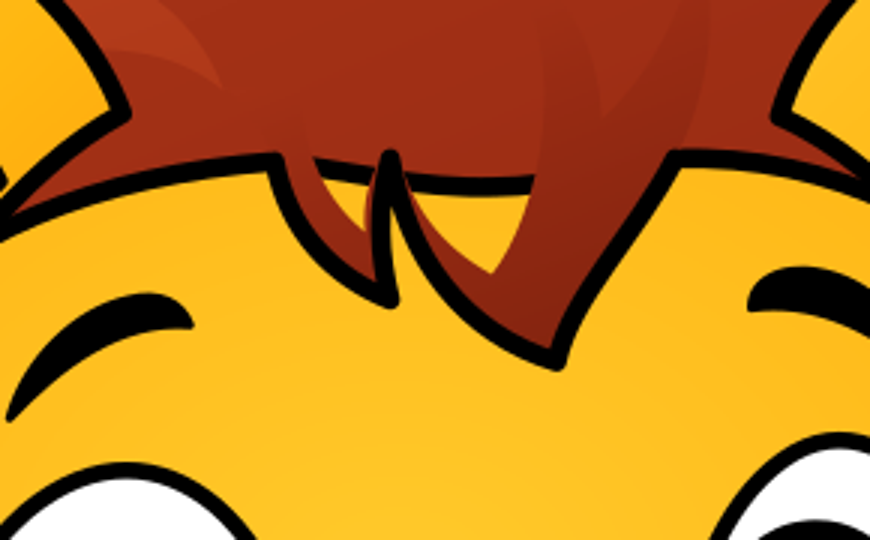
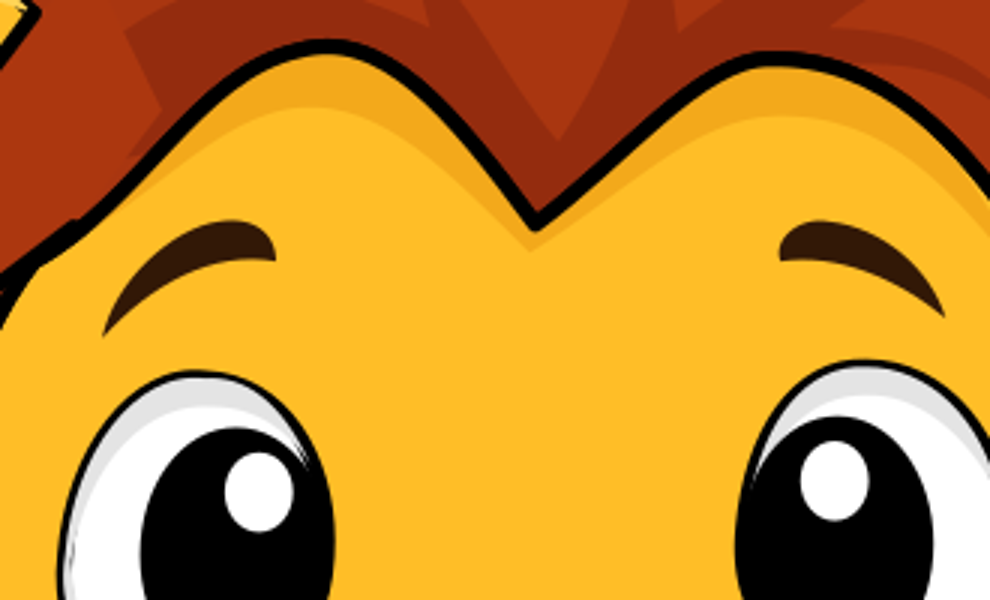
In the Sunburst close-up, yellow gaps split the tuft and a black line crosses the forehead. Flare’s pointed hairline stays solid.
The lions look convincing at first glance, but the enlarged view reveals where the drawing breaks down. Check hairlines, mouths, paws, shoulders and tails: a small mistake where shapes meet can spoil an otherwise polished character.
There is only one sample per follow-up setting, so this is not a model ranking. The unchanged path count shows why complexity should not be treated as a path-count limit.
A penguin’s proportions, an elephant’s forehead
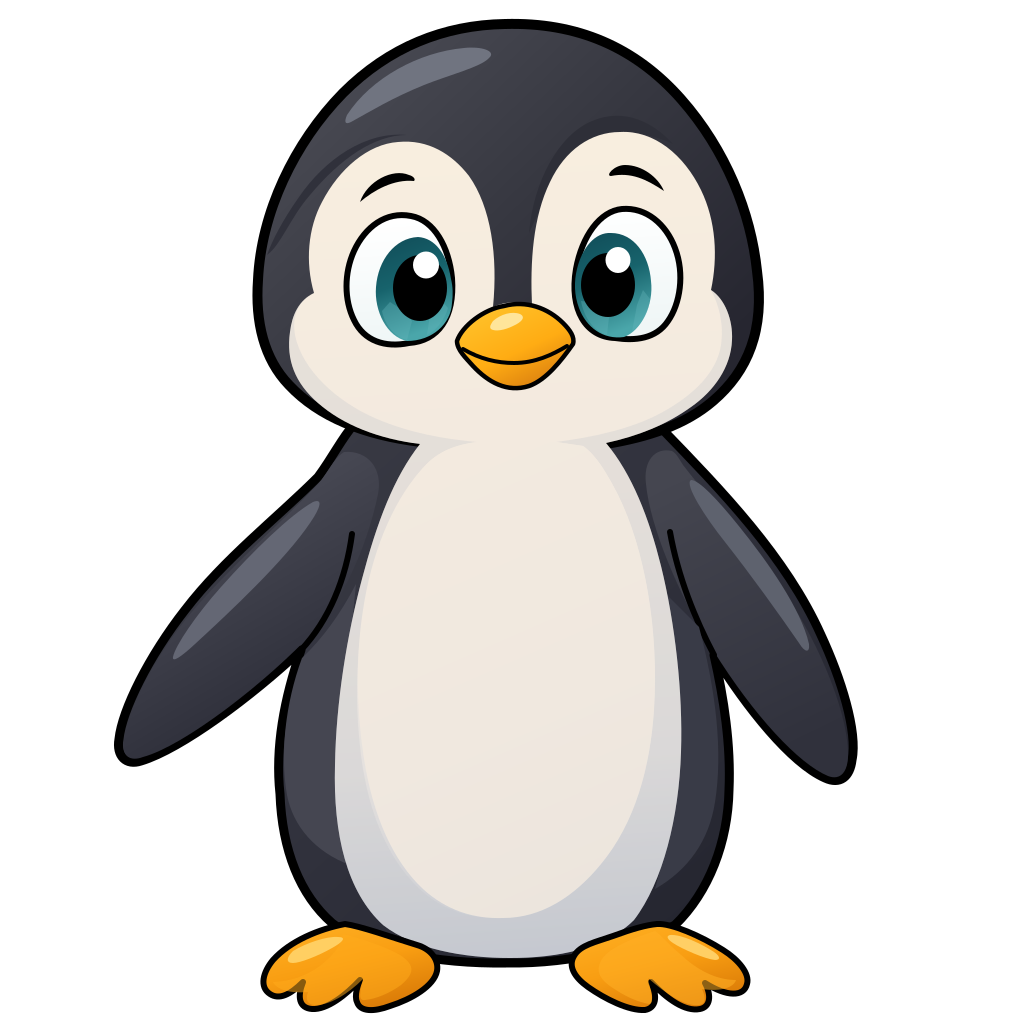
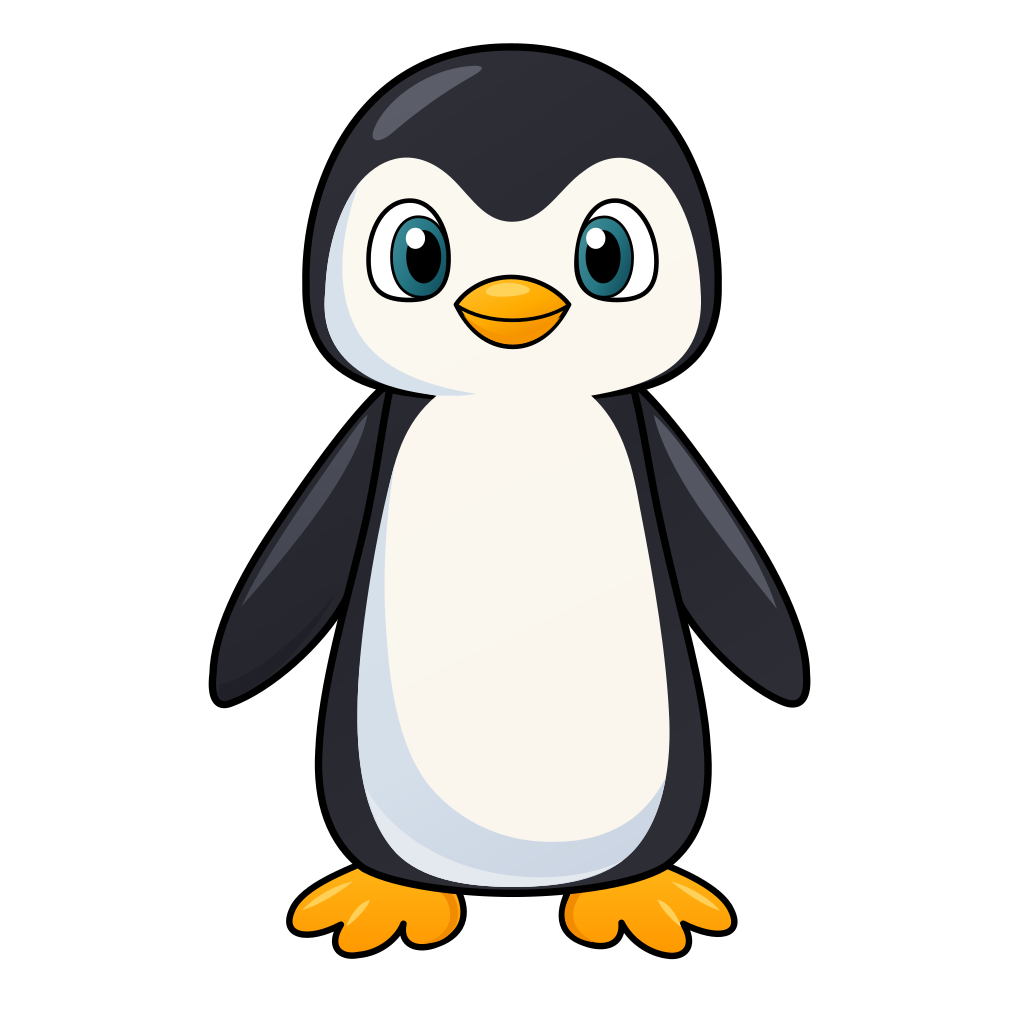
The penguin shows how much identity can sit in a few proportions. The first text-prompt SVG kept the dark body, pale belly and orange feet, but made the eyes bigger and the body rounder.
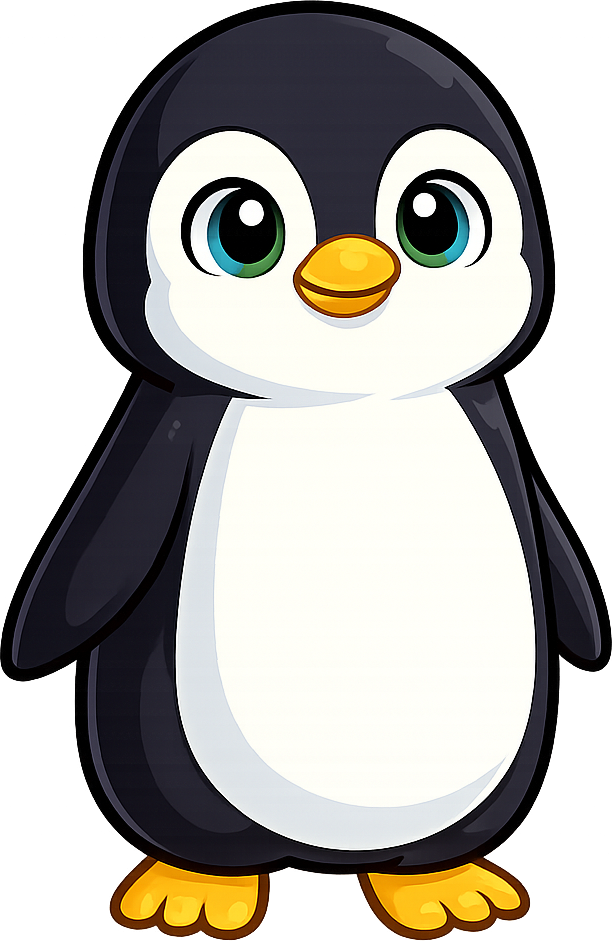
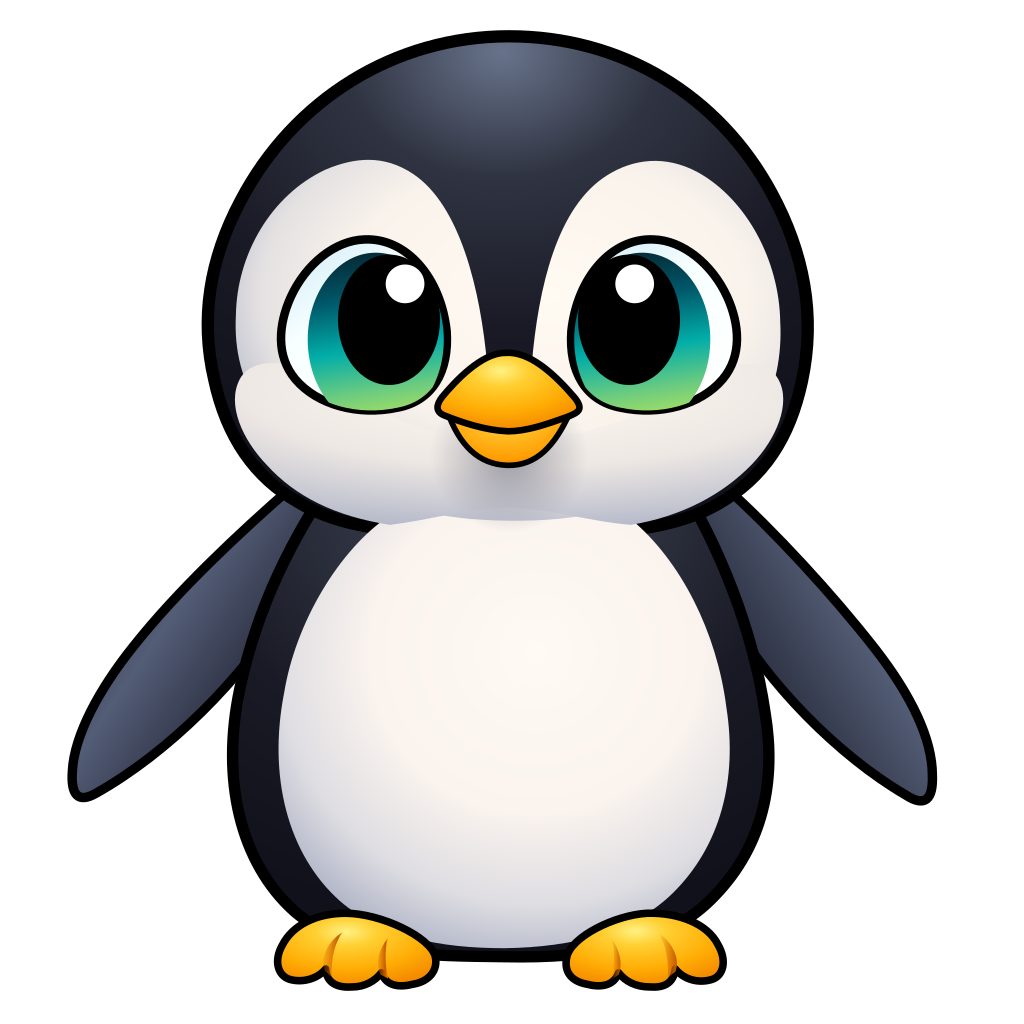
Supplying the original PNG in later requests still left room for a redesign. Sunburst spread the flippers and warmed the belly toward beige; Flare kept a narrower body. Both changed the face and beak.
The elephant offered a useful chance to be more specific. The first SVG looked too sculpted, so I supplied the original PNG and asked for a broad baby forehead, a compact body, modest ears, upright legs and sparse flat shading.
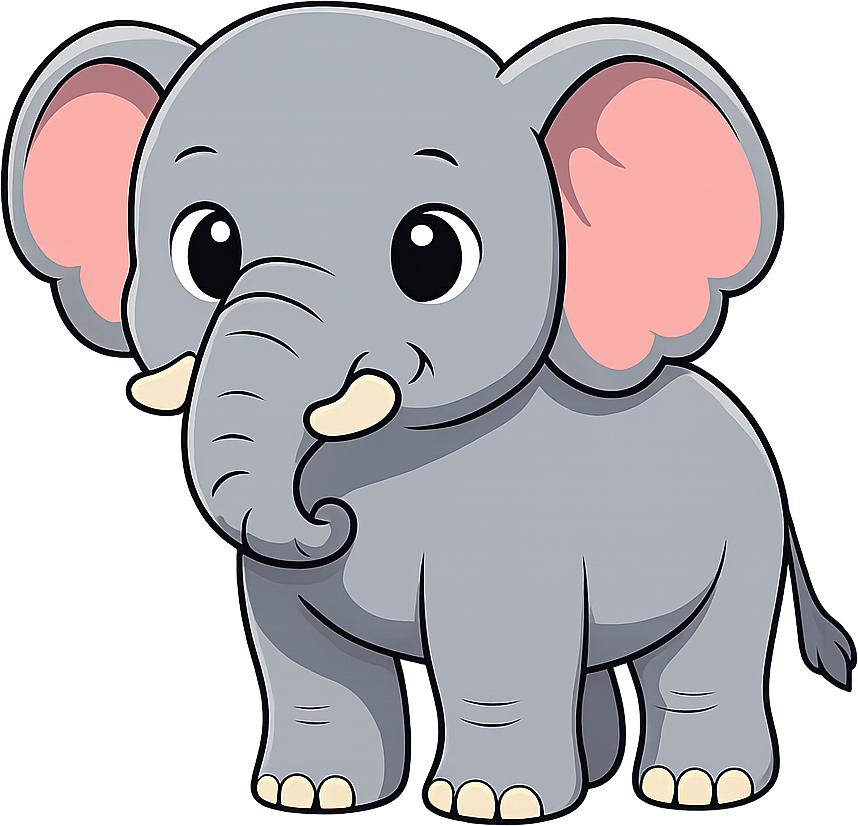
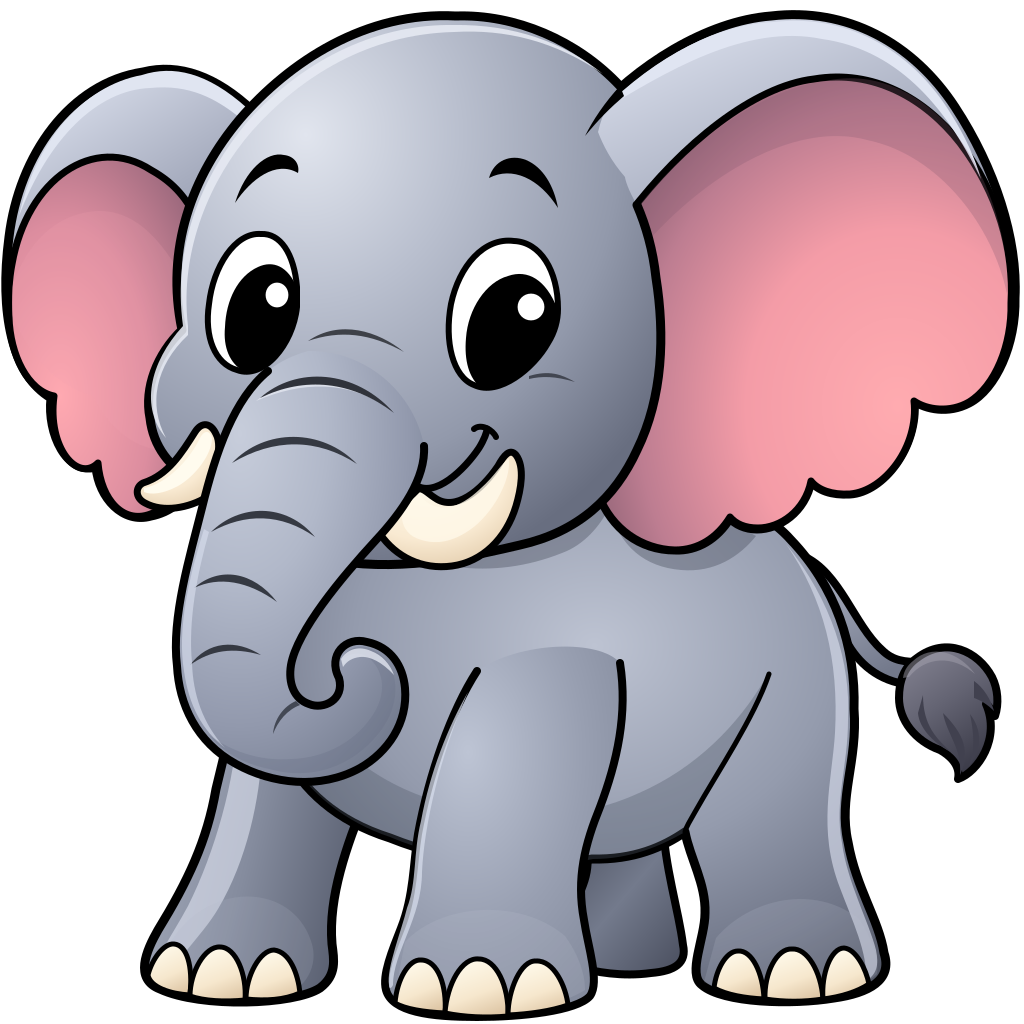
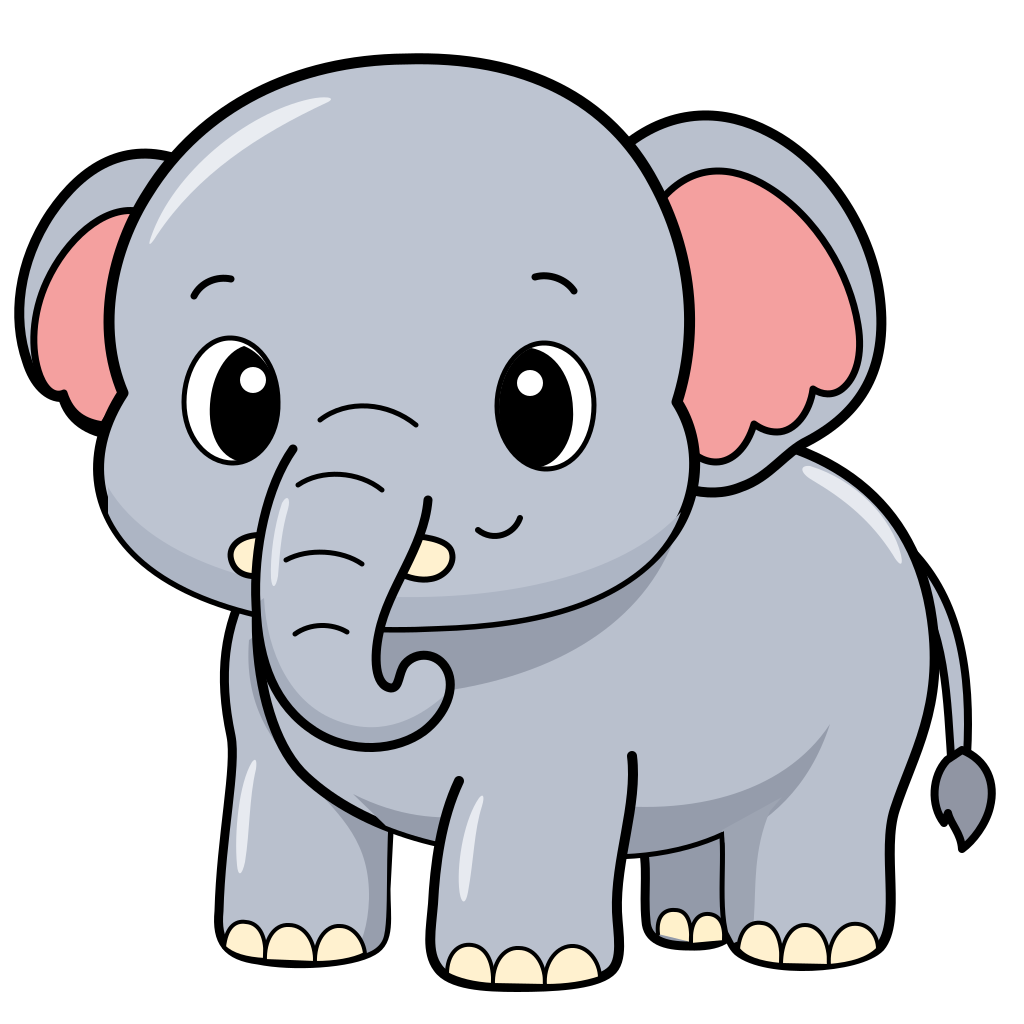
The revision moved toward the rounded, simpler treatment I wanted and dropped from 16,275 to 8,939 bytes. The trunk, feet and silhouette still changed, but the broader forehead and flatter shading gave the next drawing a clear direction. “Make it cute” would have been a much less useful instruction.
That is the most practical prompting lesson from this set: describe the character’s defining shapes, not just its style. Eye size, forehead, pose, outline color and the way limbs meet the body give you something concrete to judge in the next result.
Why tracing was not an easy answer
Before this experiment, I had tried VTracer, which traces raster colors into vector shapes. Different curve, palette and tracing settings kept running into the same problem: the lion’s mane.
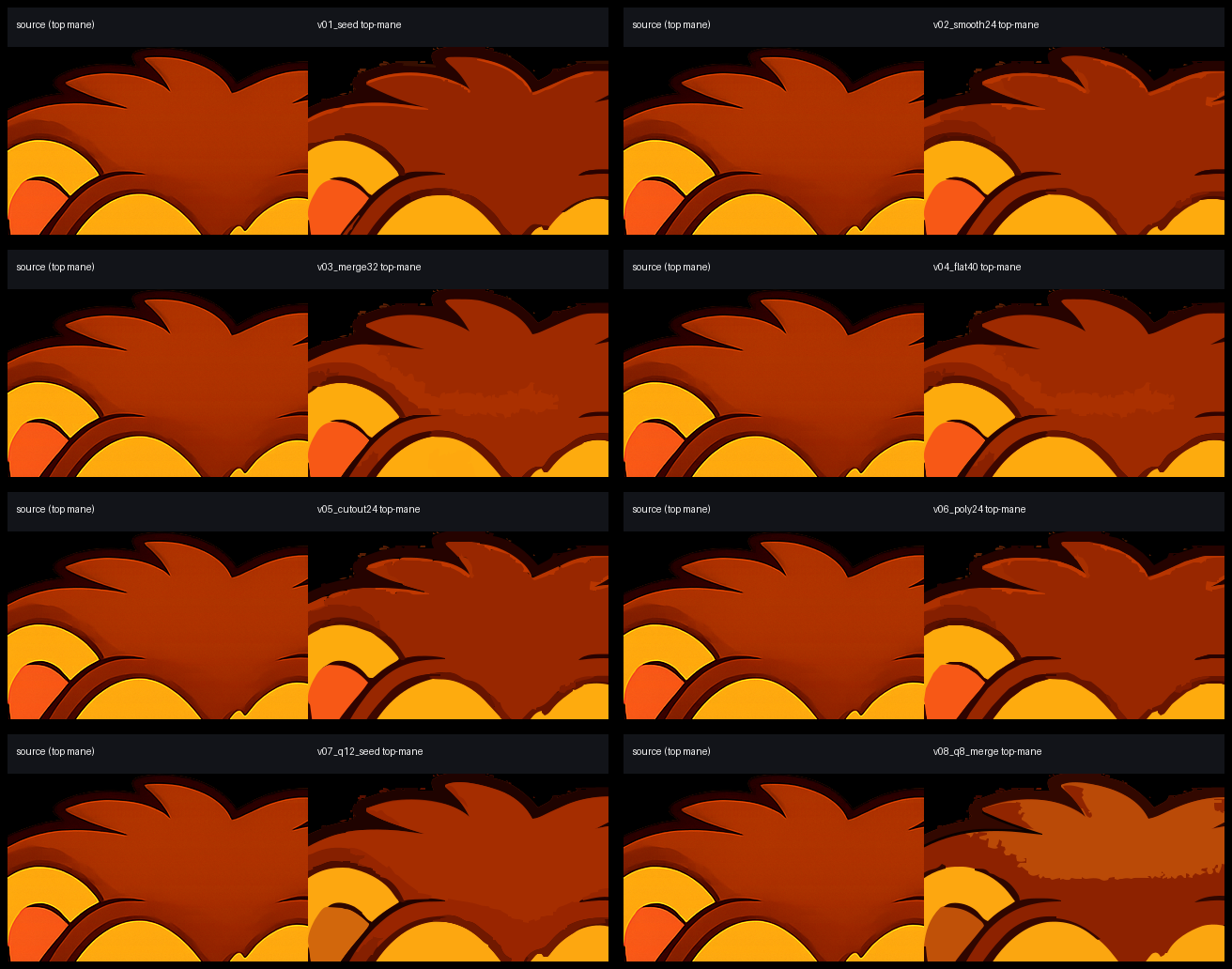
Soft shading became bands of color. Smoothed pixel edges turned into little contours. Combining VTracer fills with Potrace outlines meant preparing masks, deciding which dark regions were lines, and assembling the layers. Flattening the mane and adding an explicit stroke cleaned up its boundary, but sacrificed shading.
The two workflows left different kinds of work. Tracing held close to the source pixels and needed cleanup. Generation produced a more freely drawn character and needed a judgment about which changes to keep. That distinction matters more than declaring a winner between these separate experiments.
Try the SVG request
OpenAI’s “Generate SVG output” section documents SVG generation for GPT Image 2.6. The API first creates a reference image, then uses that image to produce the SVG. That generated reference is separate from an existing game asset you supply as context. The image-edit endpoint does not support SVG output. In these tests, supplying the original PNG still produced a new drawing rather than an exact vector copy.
I used the Responses API, with gpt-6.1-sol as the outer model and Sunburst or Flare selected in the image-generation tool. The saved results identify Sol as the SVG author in svg_usage.model. The Sunburst and Flare labels above refer to the requested image-generation stage.
Here is the text-only pattern used for the first frog, with a shortened prompt. You will need an API key and access to the named models. Generation is billed, and each run produces a new result.
import base64
from pathlib import Path
from openai import OpenAI

client = OpenAI(max_retries=0, timeout=600)

response = client.responses.create(
    model="gpt-6.1-sol",
    input=(
        "Generate exactly one image. A seated lime-green baby frog, "
        "large oval eyes, pale yellow throat and belly, four feet, "
        "smooth true-black contours, restrained shading, "
        "transparent background. No text or scenery."
    ),
    reasoning={"effort": "low"},
    max_output_tokens=8000,
    max_tool_calls=1,
    parallel_tool_calls=False,
    tool_choice={"type": "image_generation"},
    tools=[{
        "type": "image_generation",
        "model": "gpt-image-2.6-sunburst",
        "action": "generate",
        "output_format": "svg",
        "quality": "high",
        "complexity": "high",
        "size": "1024x1024",
        "background": "transparent",
    }],
)

calls = [item for item in response.output
         if item.type == "image_generation_call"]
if len(calls) != 1 or not calls[0].result:
    raise RuntimeError("Expected one completed SVG result")

svg_bytes = base64.b64decode(calls[0].result, validate=True)
Path("frog.svg").write_bytes(svg_bytes)
print(calls[0].model_dump().get("svg_usage"))
For the direct Images API, follow the request format in OpenAI’s SVG output instructions; it differs from the Responses API example above.
Before an SVG goes into the game
All 15 generated SVGs contained vector shapes, without embedded bitmaps, scripts or external resources. These animals have not yet been tested in the running game; small files and crisp browser previews do not tell us how they will look or perform there.
Before replacing an asset, work through four checks:
- Start with the face and silhouette. Compare against the original before getting attached to the new shading or a small file size.
- Inspect the joins. Enlarge the hairline, mouth and limb connections, then check that they still read at the smallest intended size.
- Measure against the assets you actually ship. Include thumbnails and the versions packaged in the game, then test memory use and rendering speed on-device.
- Try it in the real scene. Check transparency, clipping, light and dark surroundings, and the largest display size you support.
GPT Image 2.6 makes a promising starting point when there is room to reinterpret a character. For an established cast, the face, pose and silhouette need as much attention as the file size. The frog makes the case for trying it. The lion is a good reminder to zoom in.
Open the 11 KB frog SVG to inspect the shapes, or try the API example on one character you know well before changing the whole cast.
For a different take on the same challenge, see how Bunny Hop’s animation work kept a robot’s original smile while making its body move more smoothly.